Blog Summary: Choosing Your First Transcription Playback Tool: A Practical Comparison
A side-by-side look at Express Scribe, FTW Transcriber, and oTranscribe covering hotkeys, foot pedal support, file compatibility, and cost, so students can match a tool to their actual workflow instead of guessing.
If you are learning transcription or starting to take on professional transcription work, you will quickly discover that typing ability is only part of the job. You also need a reliable way to control audio, slow down difficult sections, rewind without constantly reaching for your mouse, add timestamps, and manage different types of audio and video files.
That is where transcription software comes in.
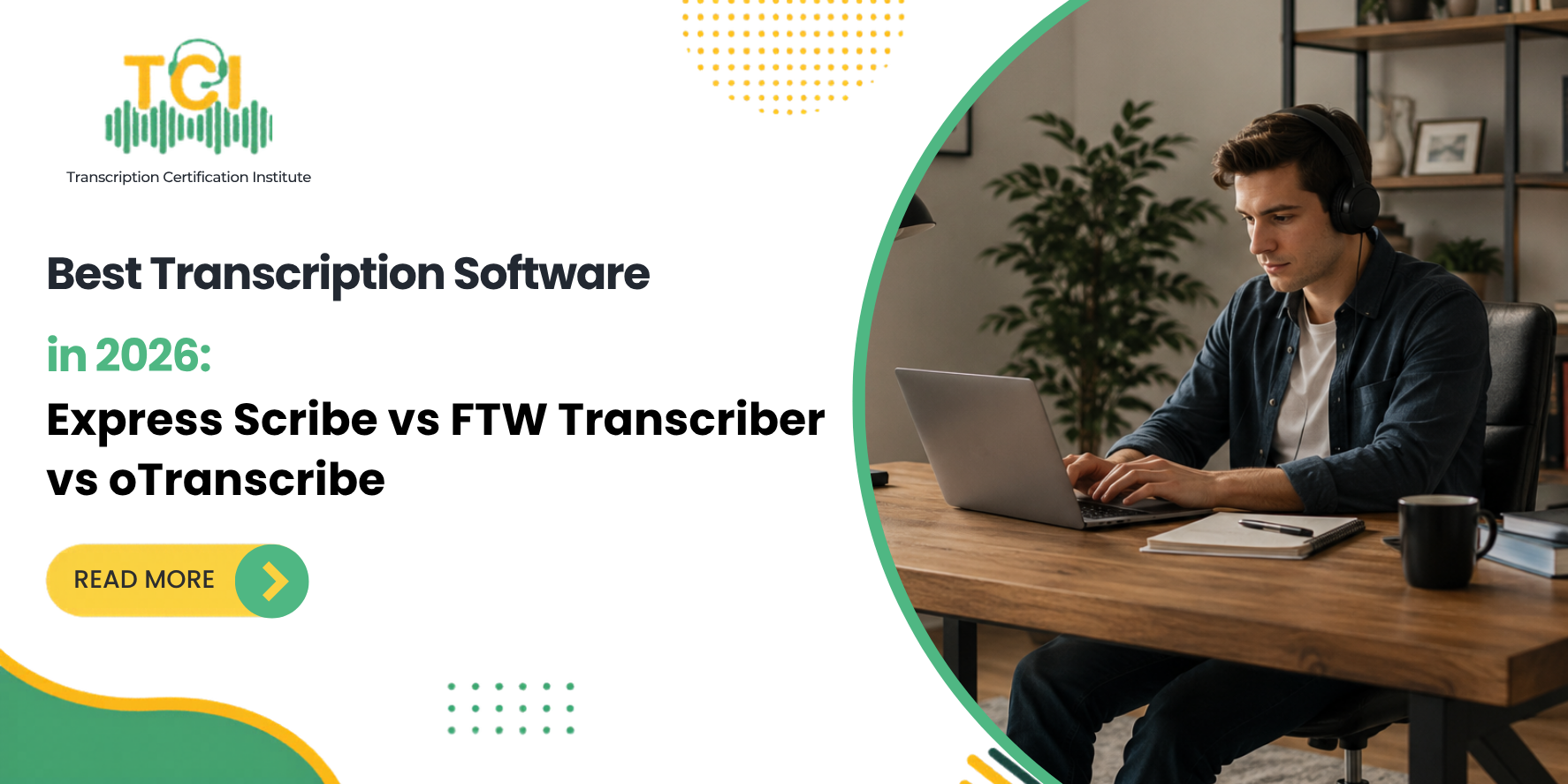
Three tools that frequently come up in transcription workflows are Express Scribe, FTW Transcriber, and oTranscribe. Although they serve a similar purpose, they are designed around different workflows.
Quick answer: There is no single best transcription software for everyone. Express Scribe is a strong all-around choice for transcriptionists who want foot-pedal support, flexible playback controls, broad file compatibility, and integration with common word processors. FTW Transcriber is particularly useful for timestamp-heavy workflows, while oTranscribe is a straightforward option for beginners who want browser-based transcription without installing traditional desktop software.
The best choice depends on your operating system, budget, assignment requirements, foot-pedal needs, file types, and whether you need advanced timestamping.
What Should You Look for in Transcription Software?
Before choosing a transcription program, consider the features that will affect your everyday workflow.
1. Playback speed control
Good transcription software should allow you to slow down or speed up audio without making voices difficult to understand. Variable-speed playback can be particularly useful when dealing with fast speakers, unfamiliar accents, or difficult recordings.
2. Keyboard shortcuts
Keyboard shortcuts let you control playback without constantly moving between your keyboard, mouse, and audio player. This can make repetitive transcription work more efficient.
3. Foot-pedal support
A foot pedal allows you to control playback with your feet while keeping your hands available for typing. If you plan to spend several hours a day transcribing, foot-pedal compatibility can become an important consideration.
4. Timestamping
Some transcription assignments require timestamps at specific intervals or whenever a speaker changes. If your work involves legal proceedings, interviews, captions, or other timestamp-heavy assignments, built-in timestamp features can save time.
5. File compatibility
Transcriptionists may receive MP3, WAV, M4A, DSS, DS2, video, or other formats. Before selecting software, make sure it can handle the files you are likely to receive.
6. Operating system
Not every transcription program works on every operating system. Check Windows, Mac, and browser compatibility before committing to a tool.
7. Privacy and storage
If you work with confidential legal, medical, business, or personal recordings, understand where your audio and transcript are processed and stored. Your client or employer may also have specific software requirements.
8. AI and speech-recognition capabilities
Modern transcription workflows increasingly combine human transcription with speech recognition and AI-generated drafts. However, playback software and AI transcription software are not necessarily the same thing. A playback tool helps you manually transcribe and review audio, while an AI transcription system attempts to generate text automatically.
Also Read: Which Transcription Tools and Software Should I Learn?
Express Scribe: Best All-Around Option for Professional Transcription
Express Scribe, developed by NCH Software, is professional transcription playback software designed to help users control audio and video recordings while creating transcripts.
According to NCH Software's official Express Scribe page, the software offers variable-speed playback, foot-pedal control, keyboard hotkeys, audio and video playback, file management, and support for many audio and video formats.
Express Scribe can also work alongside Microsoft Word and other word processors, allowing transcriptionists to control playback without leaving their typing application.
Key features:
Variable-speed playback with constant pitch
Keyboard hotkeys for mouse-free control
Support for professional transcription foot pedals
Audio and video playback
Support for many audio and video formats
Integration with Microsoft Word and other word processors
File management and automatic loading options
Support for speech-recognition software
Portable recorder integration
NCH Software currently lists support for numerous audio and video formats, including MP3, M4A, DSS, WAV and other formats.
Express Scribe pricing and versions
Express Scribe offers a free version as well as a Professional edition. The exact features available depend on the version and platform.
NCH's current feature comparison shows that the free version supports common formats such as AIFF, DCT, MP3, WAV and WMA, while the Professional edition adds broader format support and additional features such as video playback.
Because software features and licensing can change, check NCH Software's current product page before purchasing.
Who should use Express Scribe?
Express Scribe is a strong choice for:
Professional transcriptionists
General transcriptionists
Legal transcriptionists
Medical transcriptionists
Freelancers who use Microsoft Word
Transcriptionists who want foot-pedal control
Users who receive different audio formats
People who want desktop software on Windows or Mac
Express Scribe limitations
Express Scribe may be more software than a beginner needs if the goal is simply to practice transcription at no cost.
The free and Professional editions also have different feature sets, so users should check the current comparison before deciding which version they need.
Best for:
Professional transcription workflows, foot-pedal users, and transcriptionists who need broad playback and file-management capabilities.
Before downloading or purchasing: Check the official Express Scribe website for the latest features, supported formats, system requirements, and licensing information.
FTW Transcriber: Best for Timestamp-Heavy Workflows
FTW Transcriber takes a different approach from a basic audio player. It is designed specifically around transcription workflows and includes features intended to reduce repetitive tasks.
One of its biggest advantages is timestamp automation.
The official FTW Transcriber website lists automatic timestamp and frame insertion, configurable timestamp formats, saved timestamp and hotkey settings, foot-pedal control, video playback, bookmark functionality, audio enhancement, and support for a wide range of file types.
Key FTW Transcriber features
Automatic timestamps and frames
Custom timestamp formatting
Saved timestamp and hotkey configurations
Settings that can be shared with other transcribers
Foot-pedal support
Keyboard hotkeys
Audio enhancement and noise reduction
Video playback
Bookmark functionality
Playback speed and balance controls
Support for a wide range of file types
Ability to play files from remote servers without downloading them first
Compatibility with word processors
The ability to save different timestamp and hotkey configurations can be particularly useful for transcriptionists who work with multiple clients, each with different formatting requirements.
Why timestamps matter
Adding timestamps manually can become repetitive when a project requires them at regular intervals or specific points in the recording.
FTW Transcriber's automatic timestamp functionality is designed to reduce that repetitive work. It also allows users to configure how timestamps appear, which can be useful when following a client's house style.
Who should use FTW Transcriber?
FTW Transcriber may be a good fit for:
Legal transcriptionists
Captioning and timestamp-heavy workflows
Transcriptionists working with strict client formatting
Users who regularly need timestamps
Teams that need consistent timestamp and hotkey configurations
Windows-based transcription workflows
Transcriptionists who use foot pedals
FTW Transcriber limitations
FTW Transcriber is focused on helping a human transcriptionist control and process recordings. It should not be confused with a fully automated AI transcription service.
It is also not the most natural choice for someone looking for a simple browser-based transcription environment.
Best for:
Transcriptionists who frequently work with timestamps, customized formatting, foot pedals, and structured client workflows.
oTranscribe: Best Free Option for Beginners
oTranscribe takes a different approach from traditional desktop transcription applications.
It is a browser-based transcription tool designed to make manual transcription easier by combining audio playback and text editing in one interface.
According to the official oTranscribe application, users can pause, rewind, and fast-forward without taking their hands off the keyboard, use interactive timestamps, work with video files, and export transcripts.
Key oTranscribe features
Browser-based transcription
Keyboard-controlled playback
Adjustable playback speed
Interactive timestamps
Automatic browser storage
Manual backup
Video support
Export options
Open-source software
Local processing of audio and transcript
Why beginners may prefer oTranscribe
For someone who is just learning transcription, purchasing specialized hardware or installing professional desktop software may feel unnecessary.
oTranscribe provides a relatively low-friction way to start practicing. You can control playback from the keyboard while working in the transcription field instead of switching repeatedly between an audio player and a word processor.
That makes it particularly useful for students, beginners, journalists, interview transcription, and people who want to practice before investing in a more specialized setup.
oTranscribe and privacy
oTranscribe's official materials state that audio and transcripts are processed locally rather than being uploaded to a remote server.
However, browser storage should not be treated as a permanent backup system. The official help documentation includes a manual backup option, so users should export important transcripts regularly.
For confidential legal, medical, or business recordings, always follow your client's or employer's requirements regarding approved software and data handling.
Who should use oTranscribe?
oTranscribe is particularly suitable for:
Transcription students
Beginners
Journalists
Freelancers
Interview transcription
People who want a free option
Users who prefer keyboard-based controls
Users who do not want to install traditional transcription software
oTranscribe limitations
The biggest consideration is that oTranscribe is browser-dependent.
Its supported audio formats depend on the capabilities of the browser being used.
It also does not provide the same professional foot-pedal-oriented workflow as dedicated transcription applications such as Express Scribe or FTW Transcriber.
Best for:
Beginners, students, journalists, and budget-conscious users who want a simple browser-based transcription environment.
Express Scribe vs FTW Transcriber vs oTranscribe: Side-by-Side Comparison
The three programs can all help with manual transcription, but they are optimized for different needs.
Feature
Express Scribe
FTW Transcriber
oTranscribe
Windows
Yes
Yes
Browser
Mac
Yes
No
Browser
Free option
Yes
Yes
Yes
Foot pedal support
Yes
Yes
No
Automatic timestamps
No
Yes
No
Manual timestamps
Yes
Yes
Yes
Variable playback speed
Yes
Yes
Yes
Video playback
Yes
Yes
Yes
Speech-to-text integration
Yes
No
No
Broad file-format support
Yes
Yes
Browser-dependent
Works with Word/text editors
Yes
Yes
Browser-based
Local/private processing
Depends on setup
Local software
Yes
Best for
Legal, medical, freelance work needing pedal support
Sources: NCH Software, FTW Transcriber, and oTranscribe official documentation.
Software features, pricing, compatibility, and licensing can change. Verify current specifications with the developer before making a purchasing decision.
Which One Should You Actually Use?
If you already own a foot pedal or plan to invest in one, Express Scribe or the FTW Transcriber are the more practical choices, since oTranscribe does not support pedal hardware at all. If your work involves frequent, precise timestamping, such as subtitles, depositions, or closed captioning, the FTW Transcriber's automatic timestamp tools will likely save you real time. If you are just starting out, testing whether transcription work suits you, or need something that runs on any computer without installation or cost, oTranscribe is the lowest-friction way to begin.
Many working transcriptionists end up using more than one tool depending on the assignment. It is common to start with oTranscribe while building typing speed and later move to Express Scribe or the FTW Transcriber once foot pedal use and format compatibility become priorities.
On a paid legal transcription assignment, formatting requirements and timestamp accuracy are often part of the client's grading criteria, not just a nice-to-have. A tool like the FTW Transcriber, which automates timestamp insertion, can reduce formatting errors that would otherwise cost you time in proofreading. On a transcription job test, where you are being timed and scored on both speed and accuracy, having foot pedal control through Express Scribe can be the difference between finishing comfortably and running out of time. For students still building their skills, oTranscribe's zero-cost, zero-install setup removes a barrier to simply practicing more often, which matters more at the early stage than having every advanced feature available.
Final Thoughts
There is no single "best" tool among Express Scribe, FTW Transcriber, and oTranscribe. Each was built around a different priority: Express Scribe around stability and format compatibility, the FTW Transcriber around timestamp precision, and oTranscribe around accessibility and cost. The right choice depends on your equipment, your budget, and the kind of transcription work you are aiming for.
What matters more than the software itself is knowing how to apply it inside a real transcription workflow, including formatting standards, turnaround expectations, and the accuracy benchmarks employers actually test for. That is where structured training closes the gap that software alone cannot. Transcription Certification Institute's programs walk students through exactly that, using real practice files and the same tools discussed here, so you are not just familiar with the software, you know how to use it to produce work that meets professional standards.
Can I use more than one of these tools for different clients?
Yes. Many transcriptionists switch tools based on the assignment's format requirements, especially since none of these three cost enough (or, in oTranscribe's case, cost anything) to make switching impractical.
Do I need a foot pedal to work as a transcriptionist?
No, but it significantly improves speed and reduces hand strain over long sessions. If you plan to transcribe professionally on a regular basis, a foot pedal paired with Express Scribe or the FTW Transcriber is worth the investment.
Is oTranscribe safe to use for confidential audio?
oTranscribe processes audio locally in your browser rather than uploading it to a server, which is a privacy advantage. That said, always confirm with your client or employer what tools are approved for confidential or legal audio before using any software on sensitive files.
Which software is easiest for a complete beginner?
oTranscribe has the lowest barrier to entry since there is nothing to install and no cost. Many students start there before moving to Express Scribe or the FTW Transcriber as they take on pedal-based, higher-volume work.
Do these tools transcribe audio automatically?
FTW Transcriber and oTranscribe are primarily manual transcription playback tools and do not generate complete speech-to-text drafts. Express Scribe can integrate with compatible speech-recognition engines, but it is still mainly designed for playback, file management, and human transcription. Any automatically generated text must be reviewed carefully for accuracy, terminology, speaker identification, and formatting.
What is the best transcription software for beginners?
oTranscribe is a good starting point for beginners who want a free, browser-based tool for manual transcription. Express Scribe can be a better next step when a learner needs a dedicated desktop workflow and foot-pedal support.
Can I use transcription software with Microsoft Word?
Yes. Express Scribe can run in the background while you type into Microsoft Word or another word processor. FTW Transcriber also states that it works with virtually all word processors.
Do professional transcriptionists still need playback software if they use AI?
Often, yes. AI-generated transcripts still need to be reviewed for accuracy, terminology, speaker identification, formatting, and context. Playback software gives transcriptionists a practical way to listen to the original recording while correcting generated text.
Mahesh Kumar
Mahesh is the spokesperson of the Transcription Certification Institute, a Nashville, TN, based company that provides comprehensive online general transcription training certification courses. This transcription certification course facilitates careers in transcription because it provides a guaranteed internship with a major transcription company upon certification.
 Blog Summary: Choosing Your First Transcription Playback Tool: A Practical Comparison






Be the first to post a comment